For current known issues, please scroll to the bottom.
Around 99% of Pixnub issues can be resolved with the following things:
Proper Scratch Disk Setup
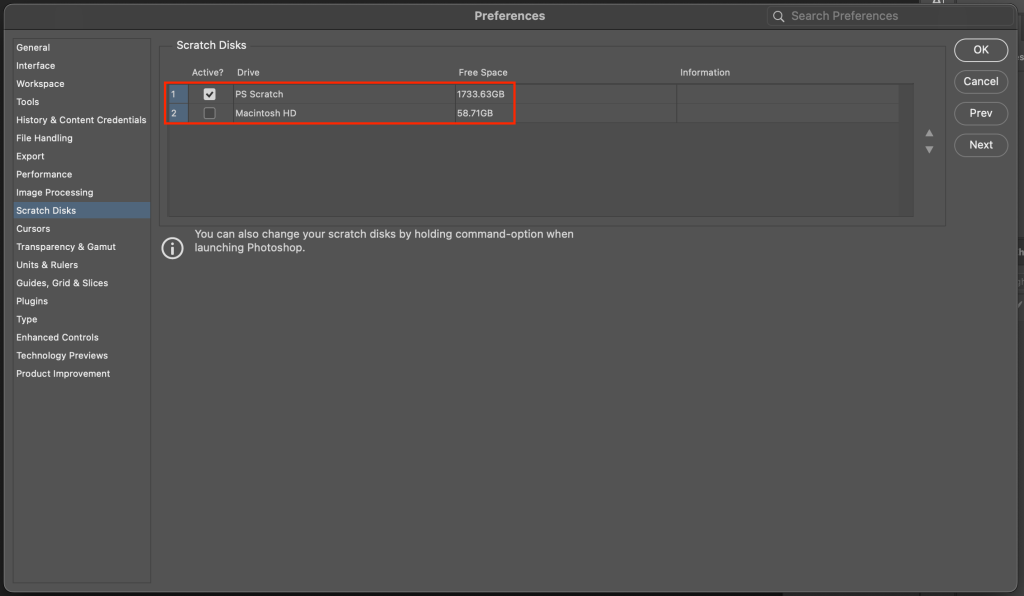
While batching, a lot of space gets used up with Photoshop’s temporary files. Ensure that your scratch disk is properly setup for smoothest operation.
Make sure only your scratch disk is checked AND the default disk is left unchecked. Otherwise, Photoshop will try to use the default one first and fill that up before going to the dedicated scratch disk.
Also, keeping your batching disk separate than your operating disk will be better for you computer’s health in the long term.
2 TB of free space is recommended.
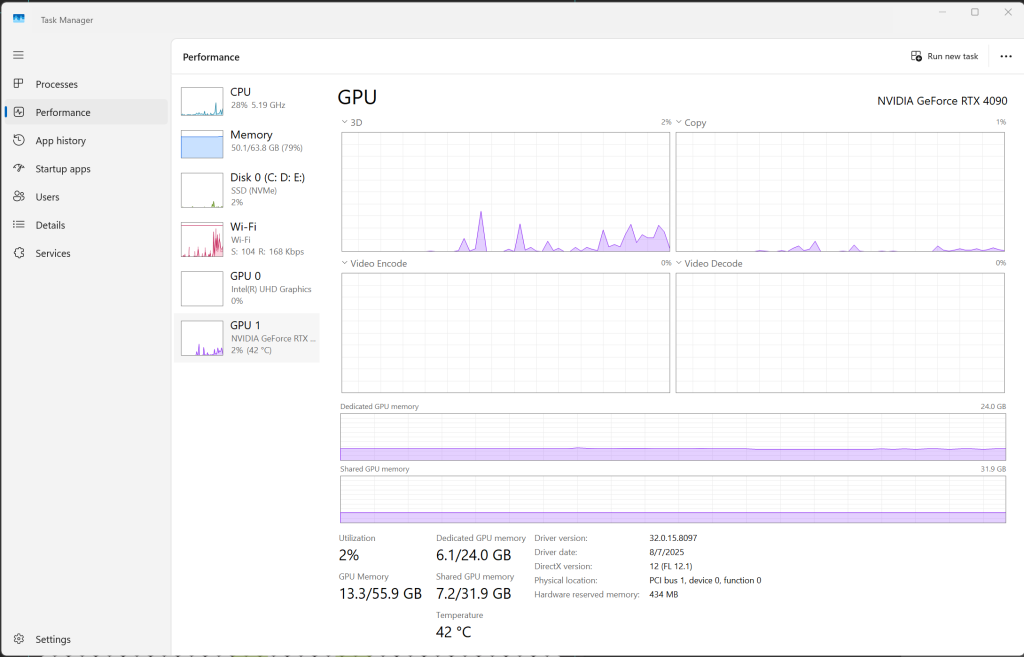
If this is setup properly and still not working, check where it crashes. Open up the Task Manager (Windows) or Activity Monitor (Mac) and see if it crashes when the GPU is at peak or the RAM is at peak. We can then determine which kind of issue it is. Then contact us for further tech support.
Update the GPU Driver
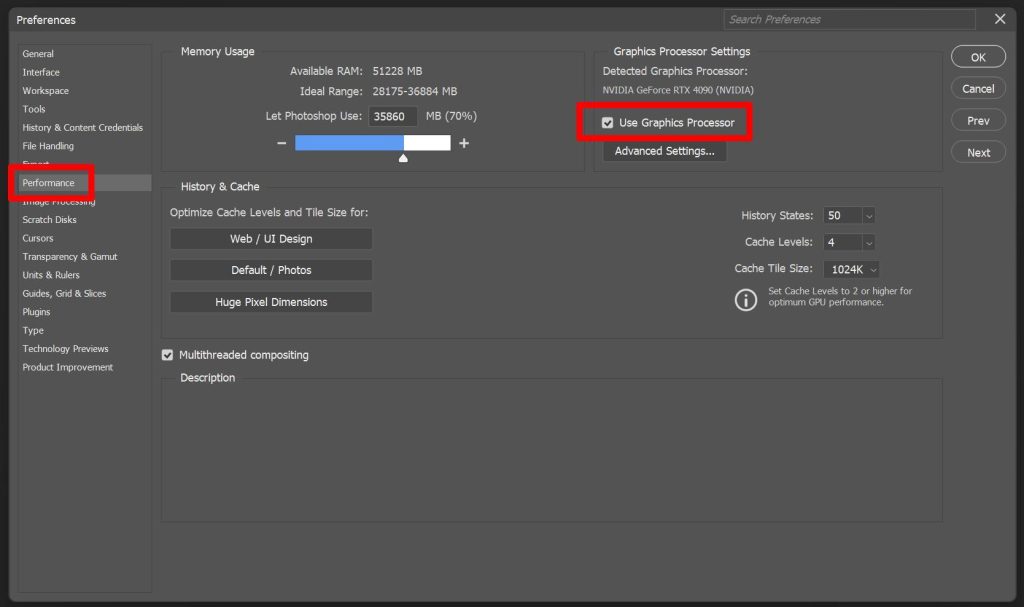
As a prerequisite, ensure that “Use Graphics Processor” is turned on.
Then, make sure that your GPU driver is using the very latest driver. Sometimes new Photoshop releases don’t work well with older GPU drivers.
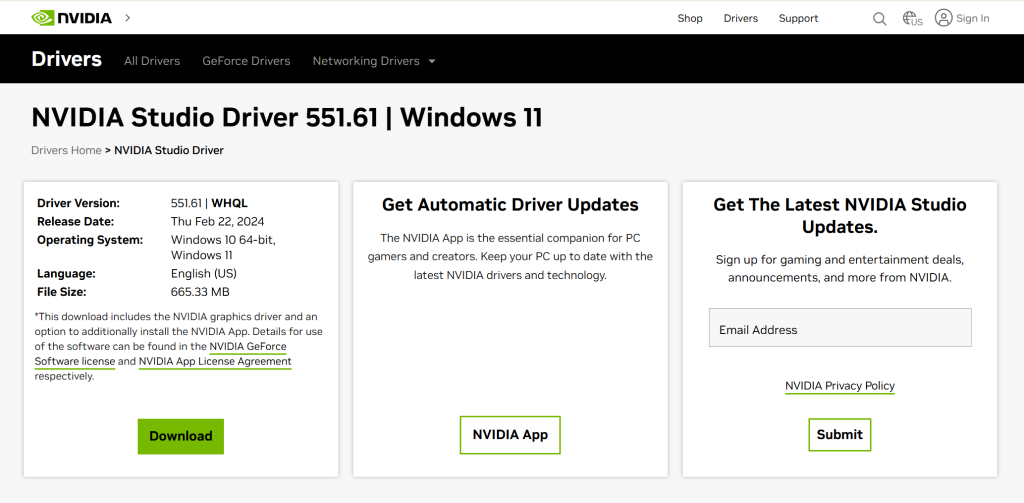
Additionally, for Nvidia drivers, always use the very latest Studio Driver, NOT the Game Ready Driver. The Studio Driver is much more stable for Photoshop.
Check the GPU compatibility
Sometimes newer Photoshop releases are no longer are compatible with older GPUs. In that case, you may have to revert to an older version of Photoshop or buy a more up to date graphics card.
Sometimes Photoshop will say your GPU is compatibility when it isn’t fully compatible…
This is especially true with older integrated GPUs.


Reset the Photoshop Preferences
If it wasn’t any of the above, you’ll want to try this last.
New Photoshop releases try to migrate the preference files from the prior release and sometimes files get corrupted during this process and can cause crashes. Resetting the Photoshop preferences in most cases fixes these crashes.
Note: Before resetting your preferences, make sure to save your current workspace (if customized) and to export and save any of your custom keyboard shortcuts and re-import them after. All of your plugins, plugin settings, and saved workspaces won’t be affected when resetting the preferences.

Spa specific troubleshooting
Analyze SPA Layers
Quickly check your template setup with the new “analyze SPA layers” button. If everything comes up valid, then it may be an issue(s) with your CSV setup. In that case, proceed next to SPA Diagnostics Mode.

Run in Diagnostics Mode
Most CSV setup issues can be resolved with the SPA Diagnostics Mode.
If it gives a pop up of an issue, make note of it and click continue because there might be more than one message. So keep clicking continue until one image is completely finished.